

What you hand over when a tool can publish for you
If you want regular articles on your WordPress site without pasting each one in by hand, some tool will need permission to publish. On most setups that permission is an Application Password: a separate credential created under a WordPress user, which an outside service uses to talk to your site through the REST API. Before you create one, the useful questions are about that access and about the words that travel through it, and they apply the same way to a plugin, an AI agent or a writing service.
They come down to what the tool's account can do, what you approve before anything goes live, what the tool can overwrite, and how you take access back. Each question comes with the WordPress or Google fact that makes it worth asking.
Which account will the tool use, and what can that account do?
Start with how the credential works. Each Application Password is tied to a specific user account, can be revoked on its own, and cannot be used to log into wp-admin. That gives you useful separation: you can withdraw the password one tool uses without changing your own login or disturbing any other connection, and someone holding it cannot open your dashboard with it.
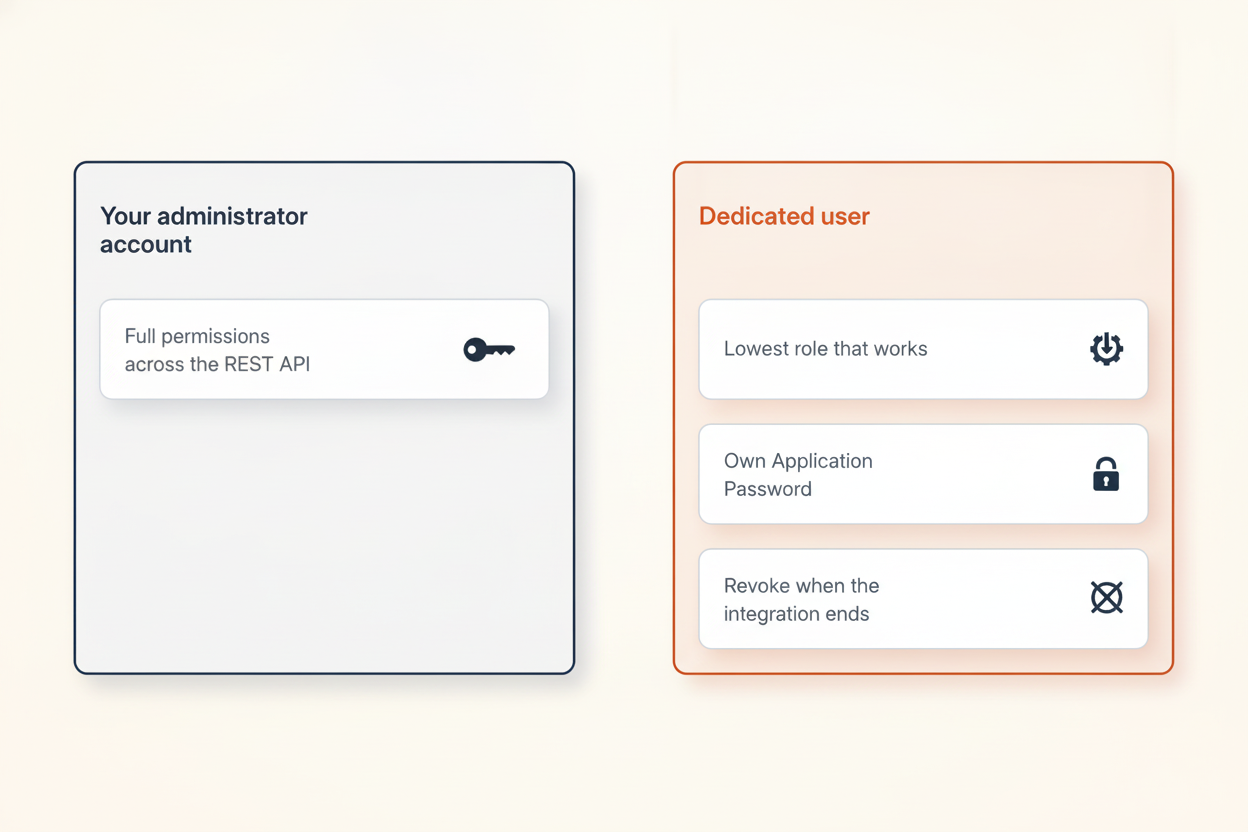
What it does not give you is a smaller set of permissions. An Application Password carries the full permissions of its user across the REST API. Create it under your administrator account and the tool can do, through the API, whatever you can do. The source that makes this point singles out AI agents: handing one a password created under an admin account hands it the admin's reach.
So ask the vendor which role their tool needs, and what it does that requires that role. Then follow the least-privilege pattern: create a dedicated user with the lowest role that works, give it its own Application Password, and revoke that password when the integration ends. The same applies to AI agents connected through the MCP Adapter, which maps abilities to tools an agent can call and typically authenticates with Application Passwords. Give the agent a limited user and expose only what it needs.
If you are unsure which role is enough, start low and watch the responses. The REST API answers with standard HTTP status codes: 401 when authentication is missing, 403 when the user lacks permission, and 404 for unknown routes or items. If the tool reports 403 errors after you connect it with a low role, find out what it was trying to do before you raise the role. Sometimes the answer is a task you never meant to hand over.
One detail to expect: by default, the /wp-json/wp/v2/users endpoint lists registered users, including usernames and user IDs. The publishing account's username will be visible to anyone who looks, so name it plainly after the tool and treat the Application Password as the part that has to stay secret.
What you approve, and what the tool can overwrite
Permissions decide what a tool could do. Approval controls decide what it actually does to your site. Ask three things: do new articles wait for your approval by default, or go live on their own? Can you change that default per site? And is what you approve exactly what gets published, or can the tool still adjust it afterwards?
Then ask what it can overwrite. Can it edit posts it did not create? Can it change the title, slug or category of a page that is already live? Can it update a published article without a fresh approval from you? The role you gave its user sets the outer limit, but the tool's own behaviour decides what happens inside that limit, so you want both answers.
Google's rules explain why approval is worth the effort. AI-generated content is treated as a production method rather than a violation, and Google has permitted it since at least February 2023 when it serves readers. What it acts against is scaled content abuse: generating large numbers of pages chiefly to manipulate rankings rather than to help readers, whether the text comes from AI, freelance writers or templates.
There is no number to stay under. Google publishes no volume threshold for this policy, and volume alone is not a violation. The consequences for pages found in breach are concrete, though: they can be demoted or dropped from Google Search and can lose eligibility for Google-served ads. A steady publishing schedule is less of a risk than articles nobody checked before they went out.
Checking now has a defined scope. On October 1, 2026, Google's guidance began stating that all AI-generated content should be manually fact-checked before publication, including titles, meta descriptions, structured data and image alt text. If a tool's review screen shows you only the body text, you are approving less than it publishes. Ask whether those other fields are in front of you when you approve, and whether each factual claim arrives with the source it came from, visible during review. Checking a claim against a linked source is quick; checking an unsourced one means doing the research again.
How you take access back, and what protects it until then
Ask every vendor how you disconnect, and know how to do it yourself without them. Application Passwords do not expire automatically. They stay valid until someone revokes them, so a tool you stopped using months ago may still hold a working key. A rotation policy suits any site in production: decide when each password gets replaced, and revoke it the day an integration ends.
A few habits make the password itself safer. When you create one, give it a name that says which tool it is for and save it immediately, because WordPress will not show it again. If you run your own publishing script, keep the password out of version control and load it from an environment variable instead. And check that your site runs on HTTPS: external services should use Application Passwords over HTTPS, and by default WordPress only makes them available on HTTPS sites or local environments.
The rest sits around the API rather than in it. WordPress has no built-in REST rate limiting, so login-like or expensive endpoints should be protected by your host, a CDN or a web application firewall; ask your host what it already does. Keep core updated as well. The WordPress 7.0.2 security release in July 2026 fixed a REST API batch-route confusion issue combined with SQL injection that could lead to remote code execution, the kind of fix a site with publishing tools connected wants installed promptly. Application password hardening is on the published WordPress 7.2 roadmap, but listed items may not all ship, so set up the controls available today rather than waiting for it.
Don't switch the REST API off
Turning the REST API off entirely looks like the cautious option and breaks your site instead. The block editor, many plugins and the WordPress admin itself depend on it.
The questions in one place
The list below works as a script for a sales call or a support ticket, and as a record of what you set up. Keep the answers next to a note of which user and which Application Password belong to which tool.
Before any tool publishes to your site
- Which user role does the tool need, and what does it do with it?
- Is there a dedicated user with that role and its own Application Password?
- Does every article wait for your approval, and is what you approve exactly what goes live?
- Can the tool edit or overwrite posts it did not create, or change published ones?
- Does the review show the title, meta description, structured data and image alt text?
- Does each factual claim arrive with its source?
- How do you disconnect, and when will the password be rotated or revoked?
- Is the site on HTTPS, up to date, and protected by a host, CDN or firewall that limits requests?
That note is what you reach for when you leave a tool: one user, one password, one place to revoke it.
Sources
- Secure the WordPress REST API (Without Breaking It) | Savvy – savvy.co.il
- WordPress REST API Guide: Auth, Endpoints, Security – eSEOspace – eseospace.com
- WordPress REST API Security: Stop Enumeration | Ben Ryan – benryan.com.au
- Explaining Scaled Content Abuse – ppc.land
- WordPress REST API Auth: Cookie, App Passwords, JWT & OAuth – attowp.com